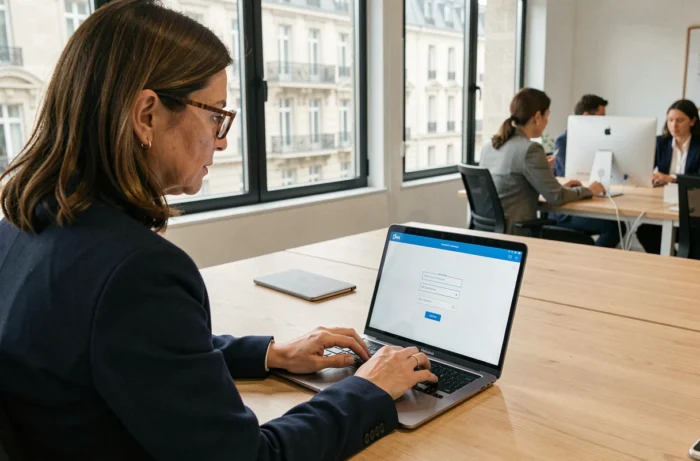
You open your browser at home, type in the IntraParis Nomade portal address, and the page stays blank. The natural reaction is to try again, switch browsers, then ask a colleague. The problem isn’t always with your device. IntraParis Nomade, the City of Paris’s internal portal, follows specific access rules that depend on the network you’re using, the type of device, and the permissions assigned to each employee.
Connecting to IntraParis Nomade from an external network: why access is blocked
At the office, connecting to the portal is seamless. Your workstation is already on the City of Paris’s internal network, and authentication sometimes happens without you even noticing.
Things change when you’re using a home network or a mobile hotspot. The IntraParis Nomade portal uses a secure gateway that checks both your employee credentials and the legitimacy of your access point. If your browser blocks third-party cookies or a personal VPN interferes, the login page may never appear.
For a clearer picture, this detailed guide explains how to access IntraParis Nomade and IntraParis email, covering each authentication step.
Turn off any personal VPN before connecting. Use an up-to-date browser (Firefox, Chrome, Edge) and check that your internet connection is working normally by opening any website. If the portal is still inaccessible after these checks, the problem is probably with the server or your access permissions.

How to tell whether the portal is down or you have an access issue
You’ve checked your browser, your network is working, and the page still won’t load. Before contacting support, a quick distinction can save you time.
Signs that the IntraParis service is down
- The page displays a server error (code 500, 502, or 503), which means the portal itself is experiencing a temporary issue.
- Several colleagues in different locations report the same issue at the same time.
- The portal loads only partially (the banner is visible, but the content is blank), indicating a problem with the application infrastructure.
In these cases, the only option is to wait for the issue to be resolved. Scheduled maintenance usually takes place outside office hours, but an unexpected outage can happen at any time.
Signs of an account-related issue
- The error message explicitly says “unknown username” or “incorrect password,” pointing to an authentication issue specific to your session.
- You can access the login page, but after submitting your details, you’re redirected back to the same page without a clear error message.
- Your account was deactivated after a period of inactivity or a change of department within the City of Paris.
If a colleague can log in without any issues, that confirms the service is working. The problem is then specific to your account, and your department’s IT support team can restore your access or reset your password.
IntraParis work email: accessing your messages on the go
Email is one of the most frequently used services on the portal. Once you’re logged in to IntraParis Nomade, you can access your work email from the internal menu, in the section dedicated to City of Paris email.
The display may vary on a smartphone or tablet. The portal isn’t a native mobile app; it’s an adapted web interface. This means some features (large attachments, document previews) may be limited on a small screen.
For reliable access to your email while on the go, use a mobile browser rather than a third-party email client. Setting up a client such as Outlook or Thunderbird on a personal device is generally not permitted without approval from the IT department.
Never set up your work email in a third-party app without approval from IT. The City of Paris’s security rules strictly govern the transfer of work data to unmanaged devices.
Contacting IT support: when and how
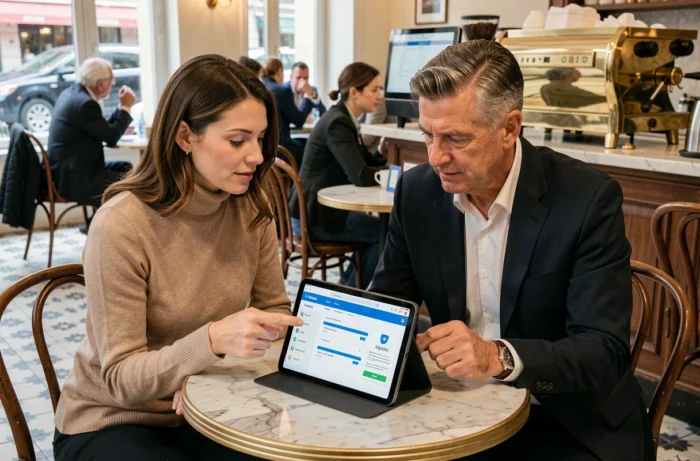
You’ve ruled out network issues, checked your browser, and a colleague has confirmed that the portal is working. The next step is to contact your department’s IT support team.
Each City of Paris department has its own support service. The support phone number or email address is listed on your employee onboarding sheet, the document you received when you started your role. If you can’t find it, your manager can provide it.
Before calling, have three details ready to speed up your request: your employee ID, the exact error message displayed by the portal, and the type of device you’re using (personal computer, work phone, shared workstation).
Password reset requests are handled quickly, often within half a day. However, reactivating an account after a change of department can take several days, as it requires management approval.
Access to IntraParis Nomade and work email depends on three simple things: a compatible network, an up-to-date browser, and valid credentials. When one of these three links fails, troubleshoot by checking them one at a time. Keeping your IT support contact details close at hand remains the most reliable shortcut when technical checks aren’t enough.